PageMask
网页上不想看的,收起来。 Hide what you don't want to see.
数据只留在你的浏览器里:没有账号,没有统计,不上传。 Your data stays in your browser: no account, no analytics, nothing uploaded.
功能Features
收起内容Hide items
点选推广横幅、侧栏或页脚,保存后从网站消失。 Pick a promo, sidebar or footer; once saved, it stays hidden on that site.
标题和图标Title & icon
标签页标题自己写(如「阅读」),图标可换掉或隐藏。 Write your own tab title (say “Reading”); swap or hide the tab icon.
整页变灰Turn the whole page gray
整页一键变黑白,再点变回彩色;文字和布局不乱。 One click: black and white. Another: color back. Text and layout stay as they are.
遮住这一页Cover this page
临时遮住整页:标题和图标换掉;点「恢复」回来。 Cover the whole page: tab title and icon change; “Restore” brings it back.
实际效果What it looks like
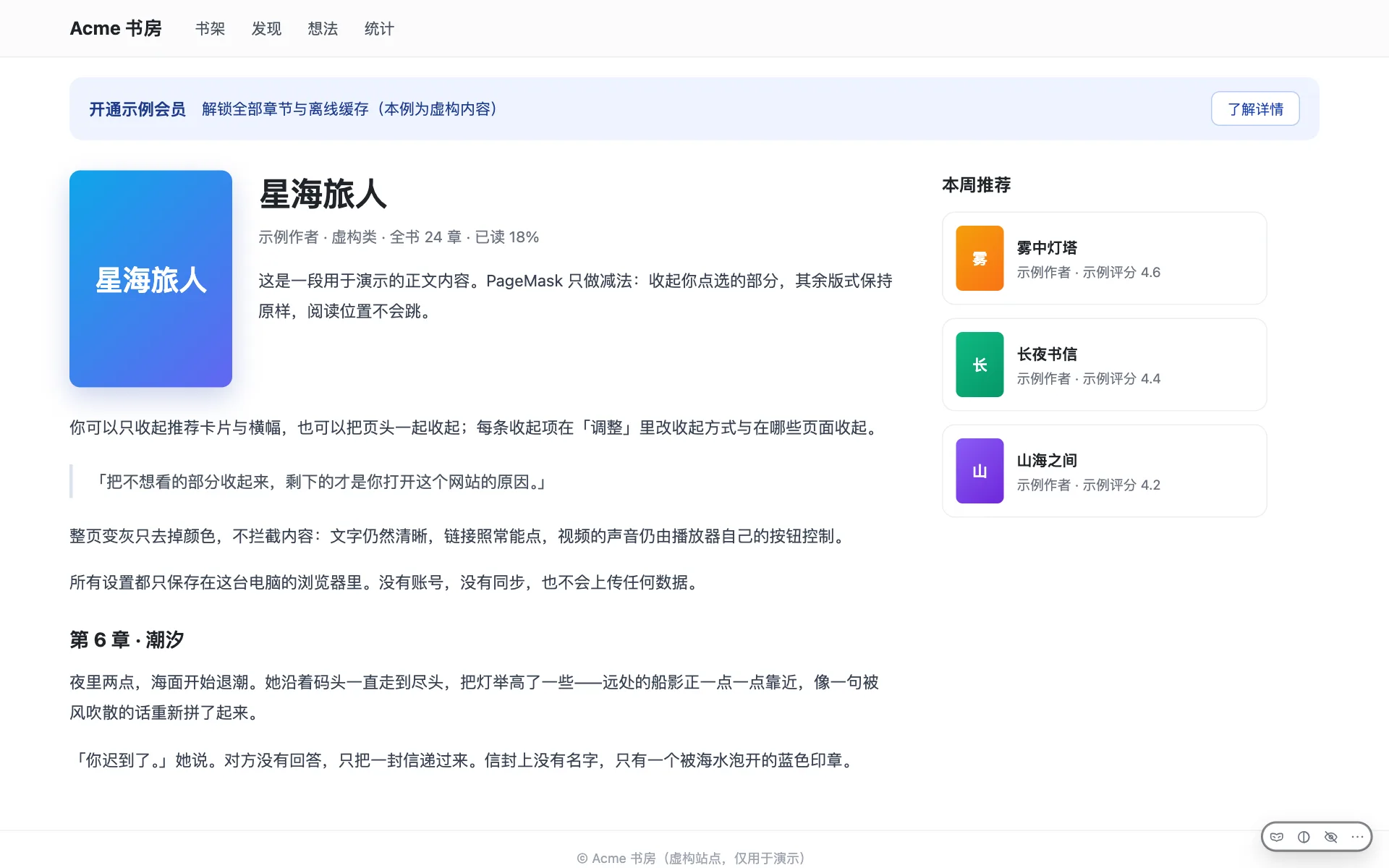
效果预览步骤Effect preview steps
第 1 步,共 7 步:Step 1 of 7: 页面本来的样子:页头、推广横幅、本周推荐和页脚。 The page as it is: header, promo banner, recommendations and the footer.
第 2 步,共 7 步:Step 2 of 7: 在「标题和图标」里填「阅读」,图标保留网站原来的,点「保存」。 Enter “Reading” in “Title & icon”, keep the site’s own icon, then click “Save”.
第 3 步,共 7 步:Step 3 of 7: 标签页标题变成「阅读」,网页本身没动。 The tab title becomes “Reading”; the page itself is unchanged.
第 4 步,共 7 步:Step 4 of 7: 点选要收起的内容。橙色编号和边框只在点选时出现。 Pick what you want to hide. Orange numbers and outlines show only while picking.
第 5 步,共 7 步:Step 5 of 7: 保存后,点过的 4 项都不见了,正文还在。 After saving, all four picked items are gone; the article stays.
第 6 步,共 7 步:Step 6 of 7: 整页只剩黑白,文字、封面和链接都在原位。 Now black and white; text, cover and links stay in place.
第 7 步,共 7 步:Step 7 of 7: 整页空白是正常效果;点右下角「恢复」、刷新或离开就回来。 A blank page is normal here; click “Restore” at the bottom right, reload, or leave to come back.
怎么用How it works
-
点 Chrome 右上角的拼图图标,把 PageMask 固定到工具栏。 Click the puzzle-piece icon in Chrome and pin PageMask to the toolbar.
-
打开 PageMask 弹窗。第一次点「收起内容」时,选「允许」访问这个网站。 Open the PageMask popup. The first time you click “Hide items”, choose “Allow” to give access.
-
点「收起内容」,在页面上点选要去掉的内容,点「下一步:看效果」,再点「保存」。 Click “Hide items”, pick what you want gone, click “Next: check the result”, then “Save”.
之后用页面上的悬浮按钮,在「按设置」和「原样」之间切换。 After that, the on-page floating button switches between “Your settings” and “As is”.
安装 PageMaskInstall PageMask
还没上架 Chrome 应用商店。先用 GitHub Releases 的 zip 安装。 Not on the Chrome Web Store yet. For now, install from the GitHub Releases zip.
- 下载最新的 zip,解压到一个长期保留的文件夹。 Download the latest zip and unzip it into a folder you will keep.
- 在 Chrome 116 以上的地址栏打开 chrome://extensions,打开右上角的「开发者模式」。 In Chrome 116 or later, open chrome://extensions and turn on Developer mode (top right).
- 点「加载已解压的扩展程序」,选中刚解压的文件夹。 Click Load unpacked and choose that folder.
更新时覆盖同一个文件夹并点刷新。别点「移除」或换文件夹,设置会清空——Chrome 对手动加载的扩展都这样。 To update, overwrite the same folder and click reload. Don’t click “Remove” or switch folders — either wipes your settings (Chrome does this to every manually loaded extension).
隐私Privacy
没有服务器,没有账号。四件事,完整说明见隐私政策。 No server, no account. Four things; the full policy has the details.
不联网No network
不发起任何网络请求:没有统计、广告和外部脚本。 Makes no network requests: no analytics, ads or external scripts.
数据只在本机Data stays on this device
设置只存在这台电脑的浏览器里;卸载就全部消失。 Settings live only in this browser on this computer; uninstalling removes them all.
按站点逐个允许访问Access, one site at a time
安装时不请求网站权限;用哪个才允许哪个。 No site access at install; allow one site at a time.
导出 / 导入Export / Import
设置可导出,换电脑再导入;访问权限要重新允许。 Export settings, import on another computer; re-allow site access in Chrome.
常见问题Frequently asked questions
会影响我没添加的网站吗? Will it affect sites I haven’t added?
不会。没添加的网站不注入任何脚本、样式或界面;遮住这一页也要你先点。 No. On sites you haven’t added, PageMask injects no script, style or UI; covering a page also takes a click from you.
需要注册账号吗? Do I need an account?
不需要。没有账号也没有登录,设置只存在这台电脑的浏览器里。 No. There is no account and no sign-in. Your settings live in the browser on this computer.
设置能换电脑吗? Can I move my settings to another computer?
可以。导出设置,在另一台电脑导入;访问权限要在 Chrome 里重新允许。 Yes. Export settings, import on the other computer, then allow site access in Chrome again.
怎么显示原页面? How do I see the original page?
可以。从「全部网站设置」点进网站的设置页,在收起项清单里逐条删除;点「恢复网站原来的内容」可一次全恢复,标题和图标不变。 Yes. Open the site’s settings page from “All site settings” and delete items in the list one by one. “Use the site’s own content” restores them all at once — the title and icon stay.